
Business Card Design Tool Tutorial to Create Cards in Minutes

Emma is our prepress and print production voice, built from the knowledge of our production team, with over 20 years in printing.
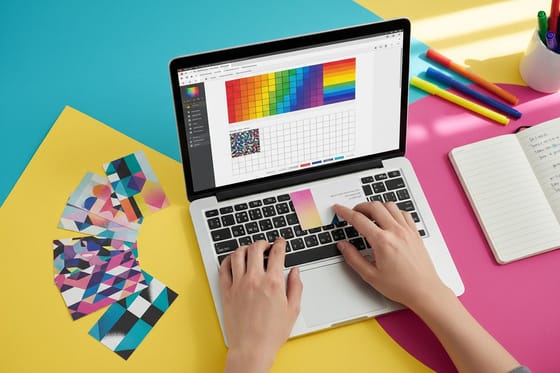
No Illustrator, no design degree. This business card design tool tutorial starts from a print-ready template in the free 4OVER4.COM designer: swap in your details, and have a card ready to order in minutes. The eight steps below run from card size to the final proof.
To design a business card with the free 4OVER4.COM tool: pick your size and a template, customize the fonts and brand colors in CMYK, upload a high-resolution PNG logo, set up bleed and safe zones, design the back with a QR code or tagline, then preview, approve the digital proof, and order on the stock you want. The templates do the heavy lifting, so a polished card takes minutes, not hours.
Quick tips
Quick tips for designing your business card
Start from a template, keep it to two fonts, and design in CMYK. Upload your logo as a high-resolution PNG, run backgrounds to the bleed edge, and keep text inside the safe zone. Use the back for a QR code or tagline, then approve the digital proof before you order. 4OVER4.COM customers who follow this order get a card that looks designer-made in minutes. If you came looking for 4K business card templates for web design, the templates here are print files instead: a 3.5 by 2 inch card with bleed and safe zones, built in CMYK with logos at 300 DPI, ready to print rather than to display on a screen.
Nothing to install, no design fee, no account needed to try it. Open a template, drop in your logo and details, and you can have a proof-ready card in minutes. New customers can put that design straight onto 200 free business cards.
Why a business card design tool beats starting from scratch
Most people do not own Adobe Illustrator, and most people do not need it. A dedicated business card design tool hands you print-ready templates, correct dimensions, such as the standard 3.5 by 2 inch card with the bleed and safe zone already drawn, and a real-time preview without the steep learning curve of professional software. The result looks like a designer made it, because the hard part is already built into the tool.
As a company, 4OVER4.COM has printed more than 10 billion cards for over 150,000 businesses, and the free online designer puts that print experience behind your file. Browse the design templates library to find a starting point that fits your industry, or order free samples first so you know how each paper stock feels in your hands before you commit.
This guide walks through the whole process, from choosing a template and customizing the layout to working with type and color, adding your logo, setting up bleed zones, previewing the design, and placing the order. Each step is covered below in the order you meet it.
Step 1: Choose your card size and orientation
Before anything else, pick your card dimensions. The standard business card is 3.5 by 2 inches, but 4OVER4.COM offers other sizes depending on the product you select, and you choose horizontal or vertical orientation right at the start.
Horizontal cards are the classic choice for most industries. Vertical cards read as less conventional, which suits creative professionals and modern brands. There is no wrong answer. Pick the orientation that gives your content the most breathing room. If your name and title run long, horizontal usually reads better, and if your logo is tall or you want a bold visual layout, go vertical.
For print guidance across other formats, the guide hub covers everything from cards to banners.
Step 2: Pick a template or start blank
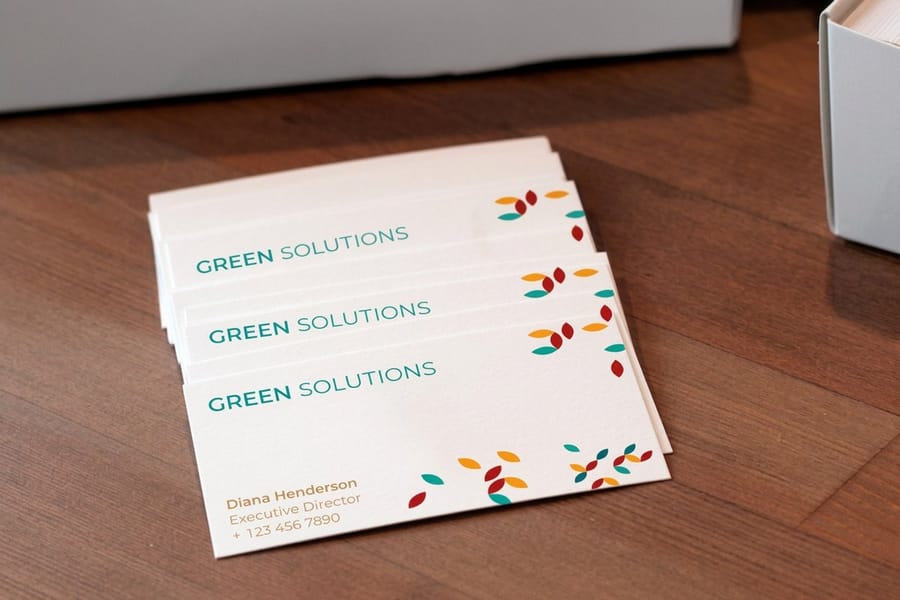
Once your size is set, the design tool gives you two paths. Browse pre-designed templates or open a blank canvas. Templates, from a library of 10,000+ designs across our products, are organized by industry and style, so a real estate agent and a yoga instructor are not scrolling through the same options.
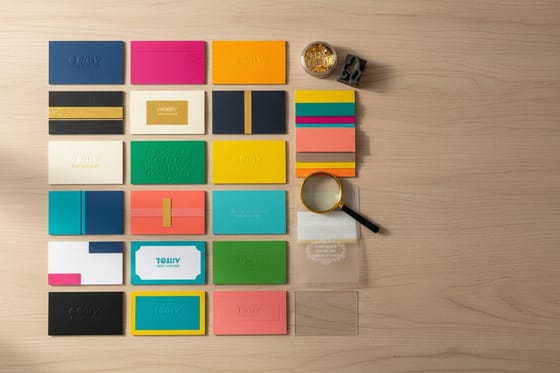
Templates save serious time. Each one already has proper margins, font pairings, and a color scheme, so you just swap in your details. Starting blank gives you total freedom, but you handle spacing and alignment yourself. For most people, starting from a template and customizing it heavily is the sweet spot. You can also pull downloadable files from blank templates if you prefer to design offline and upload later, including options like 3D lenticular business cards and black business cards. When you are ready to build inside the browser, open the free online design tool and start from any layout.
Step 3: Customize your typography
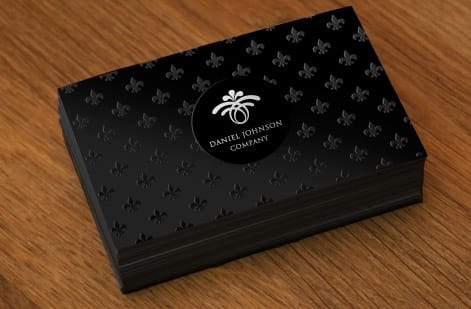
Typography makes or breaks a business card. The design tool includes a library of fonts, from clean sans-serifs to elegant serifs and modern display faces. The rule of thumb is simple, use no more than two fonts on a single card. For layouts built on type alone, browse our typography business card ideas.
Your name or company name gets the primary font, bold and readable. Contact details and secondary info get the second font, usually something lighter or smaller. Resist the urge to set your phone number in a decorative script. Nobody wants to decode your email address.
Size matters too. Your name should sit around 9 to 12pt on a standard card, and anything under 7pt risks becoming unreadable once printed. The tool adjusts size, weight, spacing, and color in real time, so experiment until the hierarchy feels right. The same typography principles carry over when you learn how to make flyers for your business.
Step 4: Set your color palette
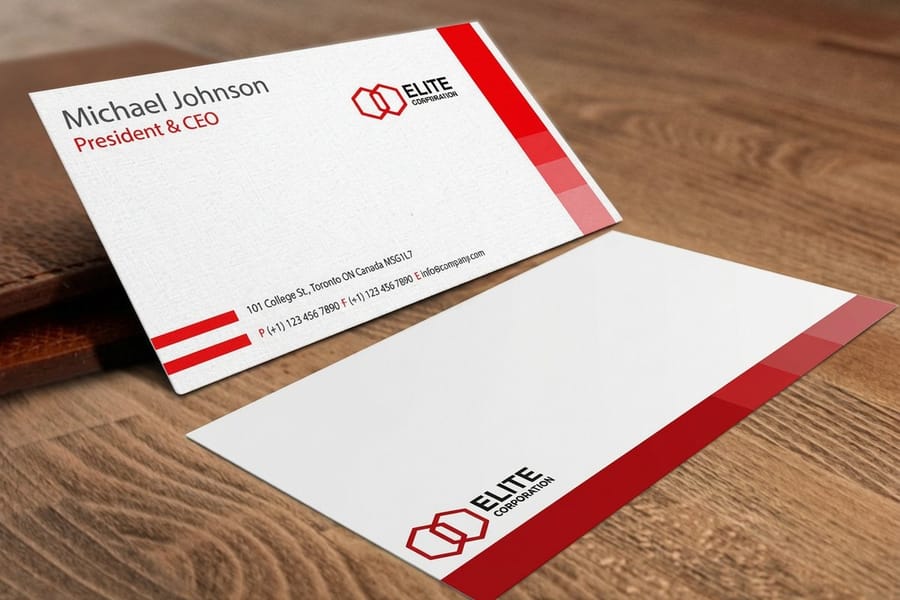
Colors on screen do not always match colors on paper. That is a fact of life in print. The 4OVER4.COM design tool works in CMYK color mode, the standard for commercial printing, so the preview lands much closer to the final result than an RGB design would.
Stick to your brand colors. If you have hex codes or CMYK values from your brand guidelines, enter them directly, because the tool supports custom color input and does not limit you to preset swatches. A common mistake is reaching for neon or very bright RGB colors that cannot be reproduced in CMYK. The tool shows you an approximation, so trust the preview.
Dark backgrounds with light text create a bold, modern look. White or cream backgrounds with dark text feel classic and clean. Both work. Just keep enough contrast between text and background so nothing disappears.
Step 5: Upload and position your logo
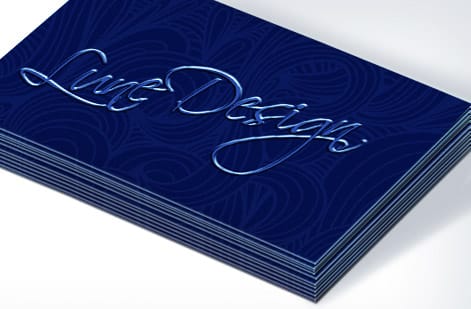
Your logo is the anchor of the card. Upload it at the highest resolution you have. PNG files with transparent backgrounds work best because they sit cleanly on any colored background. JPEGs work too, but you may get a visible white box around the logo when the background is not white.
The design tool lets you drag, resize, and rotate the logo. Place it where the eye naturally lands first, usually the top-left or the center. Do not size it so large that it crowds your text, and do not shrink it so small that people squint. A logo that fills roughly 20 to 30 percent of the card's visual space tends to feel balanced.
If your logo has fine details or thin lines, zoom into the preview. Thin elements can get lost in printing, especially on textured stocks. That is another reason to order free samples and test before committing to a large run.
Step 6: Set up bleed and safe zones
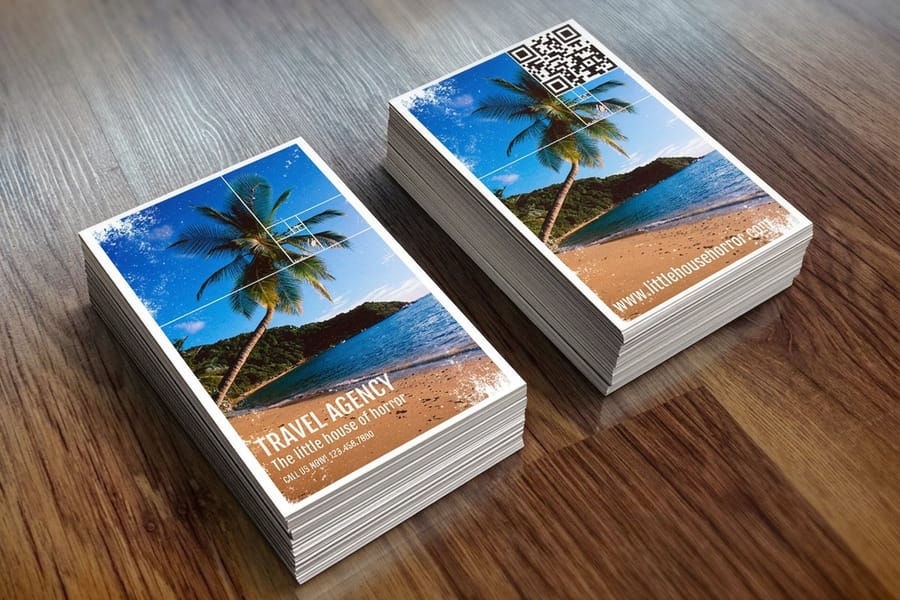
This is the step most beginners skip, and it causes the most printing headaches. Bleed is the area beyond the trim line where your design extends. It exists because cutting machines are not pixel-perfect. Without bleed, you end up with thin white edges on the finished cards.
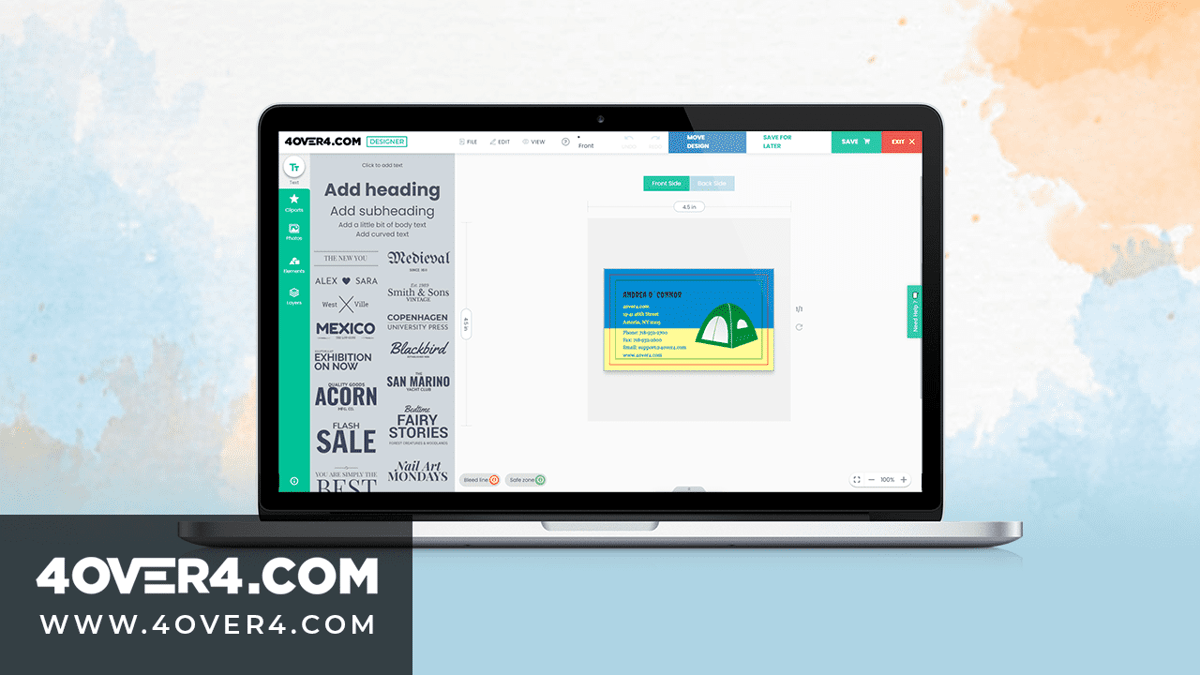
The design tool shows bleed and safe zones as guidelines on your canvas. The bleed area is typically 0.0625 inches, or one-sixteenth of an inch, on each side, and the safe zone sits inside the trim line by the same amount. Keep all critical text and logos inside the safe zone, and let background colors and images run all the way to the bleed edge.
Think of it this way. Anything in the bleed zone might get cut off, anything in the safe zone is guaranteed to appear, and anything between the two lines is a gamble. The same principle applies to every print product, whether you are designing cards or learning how to fold a brochure.
Step 7: Design the back of your card
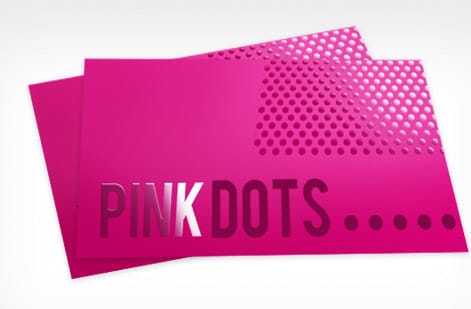
Do not waste the back. A lot of people leave it blank, but the back of a business card is prime real estate. Use it for a tagline, a QR code that links to your website, a simple pattern that reinforces your brand, or a short list of services.
The design tool flips between front and back views. You can apply a completely different design to the back or keep it minimal. A QR code is one of the smartest additions you can make, because it bridges the gap between a physical card and your digital presence. Just make sure the code is at least 0.75 by 0.75 inches so phones scan it reliably.
For creative print projects that pair well with business cards, explore guides like custom magnets and how to make envelopes for a full branded stationery set.
Step 8: Preview, proof, and order
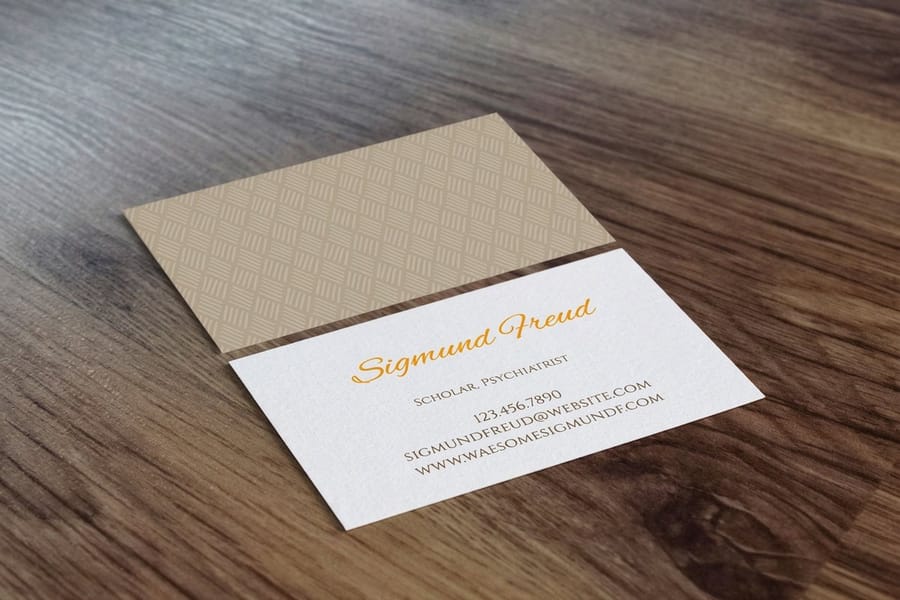
Before you hit order, use the high-definition preview. Zoom in on every element. Check for typos, because you would be surprised how many people misspell their own email. Verify that colors look right and that nothing important sits too close to the edges.
4OVER4.COM provides a digital proof so you can approve the final layout before printing begins. This is your safety net, so take it seriously. Show the proof to a colleague or a friend with fresh eyes, and they will catch things you have stared at too long to notice.
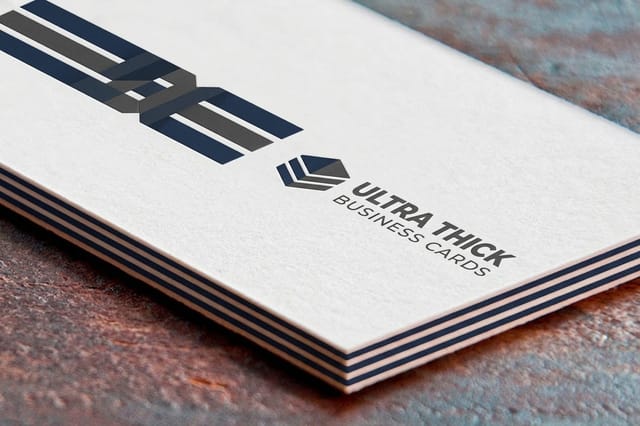
Once you approve, open the standard business cards product page to choose your paper stock, finish, and quantity. 4OVER4.COM offers 60+ paper types, from standard 14pt to ultra-thick 32pt stock. A 32pt card is roughly three times the thickness of a standard card, and people notice. It is the difference between a card that gets filed and a card that gets kept. For more hands-on print tips, how to clean rubber stamps covers maintenance for another popular 4OVER4.COM product.
Mistakes that ruin business card designs
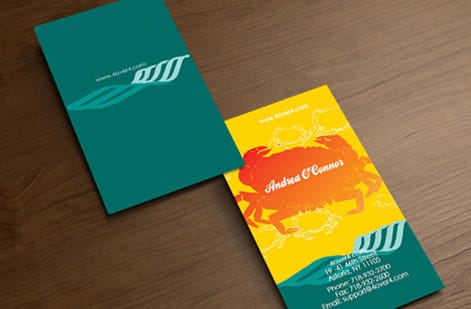
Even with a clear tutorial in front of you, certain errors show up again and again. Here are the ones the 4OVER4.COM print team sees most often.
Low-resolution logos. If your logo looks fuzzy in the preview, it looks worse in print. Always upload at 300 DPI or higher, because screen resolution at 72 DPI is not enough for print.
Too much information. Your card is not a brochure. Name, title, phone, email, website, maybe a social handle, and that is it. If you are listing six phone numbers and three addresses, you need a separate card for each location.
Ignoring bleed zones. Extend backgrounds to the bleed edge and keep text inside the safe zone. Every time.
Using too many fonts. Two fonts maximum, three only if one appears in a single word. More than that and your card looks like a ransom note.
Skipping the proof. 4OVER4.COM sends a proof for a reason. Review it carefully, zoom in, and read every word out loud. One typo on 500 cards is 500 typos you are handing out.
What makes the free design tool worth using
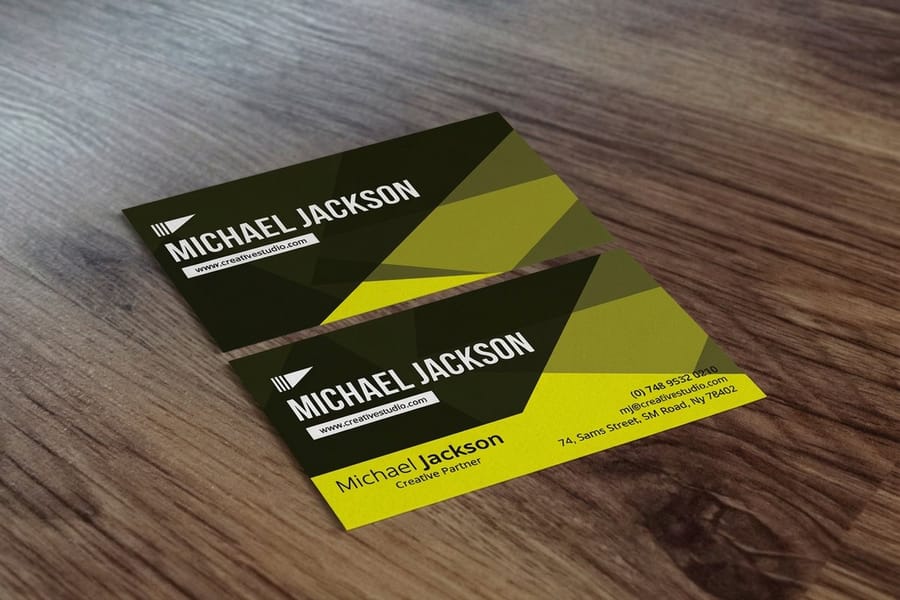
The tool is free, and it earns its place for a few concrete reasons.
- User-friendly interface. The layout is intuitive enough for any skill level, so adjusting layouts, fonts, and colors to match your brand takes no advanced expertise. Explore the templates to see how quickly it comes together.
- Deep customization. You can modify every detail, from images to finishes, and upload your own logo to fine-tune a look that is unmistakably yours.
- No added cost. The tool removes the expense of hiring a designer or buying software, and it plugs straight into the free business cards offer.
- Two free things, one session. The designer costs nothing to use and the free business cards offer covers your first 200 cards, so the design you build here and the cards it prints on can both come out of the same afternoon. That page covers the terms, this one covers the tool.
- Built for print. When the design is done, the platform connects directly to professional printing, with premium paper types, finishes, and rich color.
For a card that stops people mid-handshake, try 3D lenticular business cards for an animated effect. Standard cards on 14pt or 16pt stock handle everyday networking, and if you want something people cannot ignore, 32pt ultra-thick stock with a soft-touch finish feels like holding a credit card.
A couple of honest limits are worth knowing before you start. The tool runs online, so you need an internet connection to design or edit. Building from a blank canvas can feel daunting without leaning on the pre-made layouts. And the designs you build here integrate with 4OVER4.COM for printing rather than outside vendors, which keeps color and stock consistent from screen to mailbox.
Wally walks you through the design tool
A template plus your details equals a designer-grade card
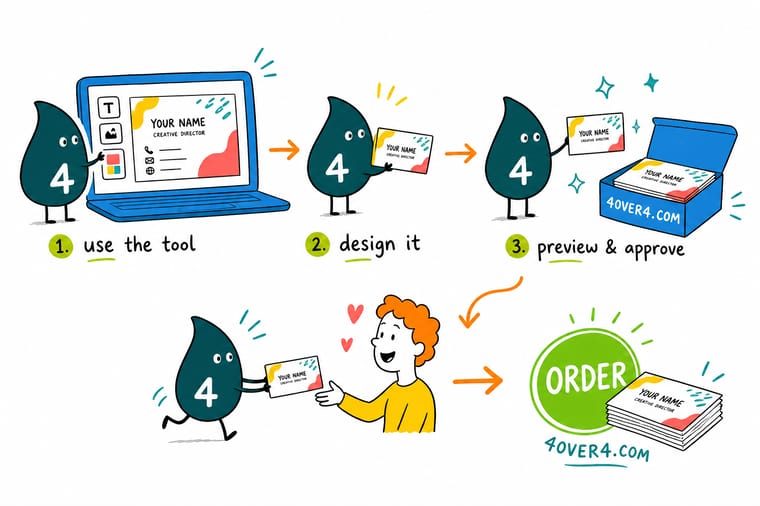
Wally treats the free design tool like a set of guardrails: the template already holds the margins, the two-font hierarchy, and the CMYK colors, so you drop in your name, logo, and brand shade and it just works. Keep text inside the safe zone, run backgrounds to the bleed edge, and approve the proof before you print. Start from a layout in the free designer and you will have a card ready to order in minutes.
Open the free design tool →%22%2F%3E%3Ccircle%20cx%3D%2234%22%20cy%3D%2219%22%20r%3D%2229%22%20fill%3D%22%2314b8a6%22%20opacity%3D%220.15%22%2F%3E%3Ccircle%20cx%3D%2233%22%20cy%3D%2229%22%20r%3D%229%22%20fill%3D%22%2314b8a6%22%20opacity%3D%220.1%22%2F%3E%3Crect%20x%3D%2274%22%20y%3D%229%22%20width%3D%2234%22%20height%3D%2219%22%20rx%3D%224%22%20fill%3D%22%2314b8a6%22%20opacity%3D%220.08%22%20transform%3D%22rotate(14%2080%2030)%22%2F%3E%3C%2Fsvg%3E)
Specs and pricing
Standard business card specs and pricing
When your design is ready, here is what a made-to-order standard business card gives you at 4OVER4.COM, with live specs and price-per-unit straight from the configurator.
| Quantity | Price Per Unit | Total |
|---|---|---|
| 100 | 17.6¢ | $17.57 |
| 200 | 11.5¢ | $23.07 |
| 300 | 9.15¢ | $27.46 |
| 400 | 7.96¢ | $31.86 |
| 500 | 7.25¢ | $36.26 |
| 600 | 6.77¢ | $40.64 |
| 700 | 6.43¢ | $45.04 |
| 800 | 6.18¢ | $49.43 |
Print it
Order the business cards you just designed
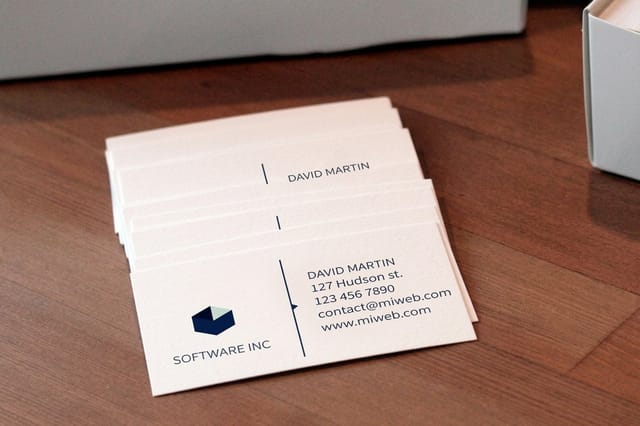

See it in use
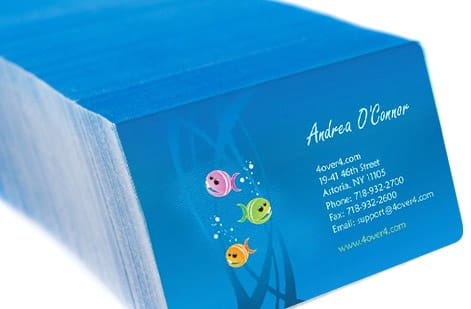
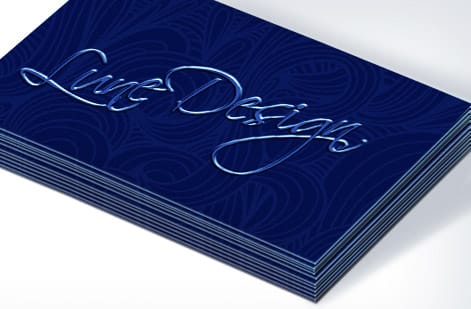
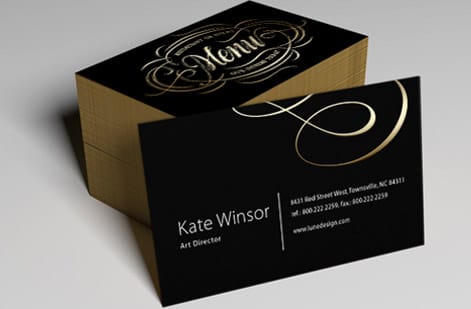
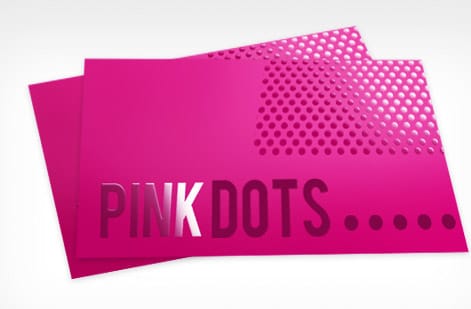
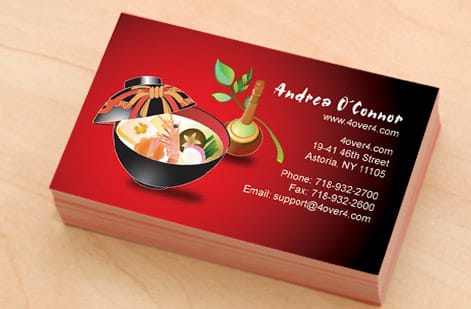
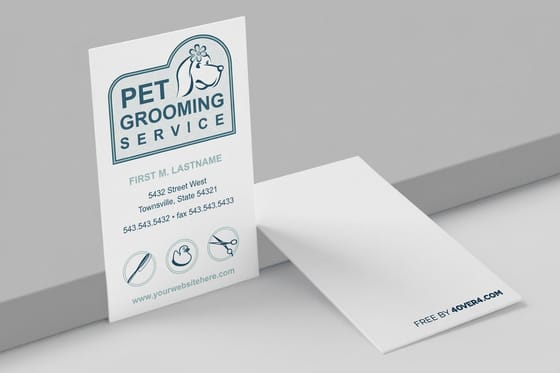
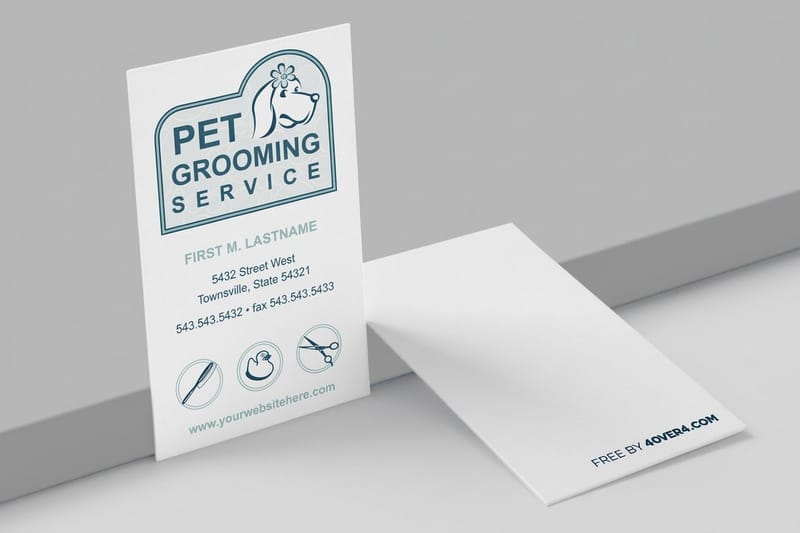
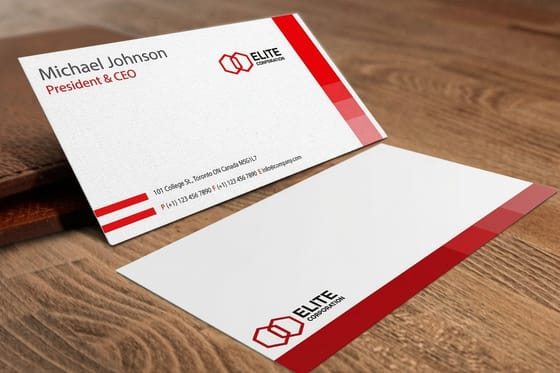
Standard business card layouts to borrow from

Explore more
Where to go next

By the numbers
What sits behind the free designer
Common Questions
Common questions about the business card design tool
Do I need design experience to use 4OVER4.COM's business card design tool?
No design experience is required. The tool includes pre-built templates with proper sizing, font pairings, and color schemes already set up. You customize by swapping text, uploading your logo, and adjusting colors. The interface uses drag-and-drop controls, so if you can use a smartphone, you can design a business card.
What file format should my logo be in?
PNG with a transparent background works best for the design tool. It sits cleanly on any background color without a visible bounding box. If you only have a JPEG, it still works, but make sure it is at least 300 DPI. Low-resolution logos are the number one cause of blurry prints.
Can I design both sides of my business card?
Yes. The tool lets you design the front and back independently, and you can flip between views while editing. Many customers use the front for contact info and the back for a QR code, tagline, or brand pattern. Printing both sides adds minimal cost and doubles your usable space.
What does bleed mean in the business card design tool?
Bleed is the extra 0.0625 inches of design that extends beyond the trim line on each side. It exists because cutting machines have slight variations. Without bleed, you risk white edges on your finished cards. Always extend background colors and images to the bleed edge, and keep important text inside the safe zone.
How do I know my colors will print accurately?
4OVER4.COM's design tool works in CMYK, the color standard for commercial printing. Colors you see in the high-definition preview closely match the printed result. Avoid neon or very bright colors that exist only in RGB. If exact color matching is critical, order a sample print first.
What paper stock should I choose after designing?
4OVER4.COM offers 60+ paper types. For everyday networking, 14pt or 16pt cardstock is a solid choice. For a premium feel, 32pt ultra-thick stock is roughly three times the thickness of a standard card. Add a soft-touch or spot UV finish to make the card memorable. Your design stays the same regardless of paper choice.
Is the 4OVER4 business card design tool free?
Yes. The design tool is free to use, with no subscription, nothing to install, and no per-design fee. You pay only for printing when you decide to order, and the design carries into that order with your paper stock and finish attached. New customers can also take the design straight onto 200 free business cards, an offer 4OVER4.COM has run since 2011.
Do I have to order to use the design tool?
No. You can open a template, build the card front and back, and view the high-definition preview without placing an order. Because the tool works in CMYK from the first click, what you see on screen is close to what the press reproduces, so it is also a fair way to test an idea before you commit. When you are ready, pick a stock, 14pt or 16pt for everyday networking or 32pt for a premium feel, approve the digital proof, and the same file goes to print.
Get Started
Order 50 ultra-thick business cards from $36.62
Pick a template, drop in your logo and brand colors, and we print a crisp, professional card on the stock and finish you choose.
Legal Disclaimer
Gold Standard guarantees apply to all standard orders placed through 4over4.com. Price match requires verifiable proof of a competitor's published price for an equivalent product with matching specifications and turnaround time. Satisfaction guarantee covers manufacturing defects and print quality issues. Contact support with order number and documentation.
