
How to Add LinkedIn to Your Business Card in 5 Steps
Emma is our prepress and print production voice, built from the knowledge of our production team, with over 20 years in printing.
Set a clean custom URL, add a QR code that scans on the first try, and place both where people will actually see them. Here is the exact routine that turns a paper card into a live LinkedIn connection.
To add LinkedIn to a business card, first customize your URL to linkedin.com/in/yourname, then display it as a printed URL, a QR code, or both. Keep the QR code 0.75 to 1 inch square with a white quiet zone, print on a matte or uncoated stock so it scans cleanly, and place it in the contact block or on the back. Polish your profile before you print, because the card is only as good as the page it opens.
Quick tips
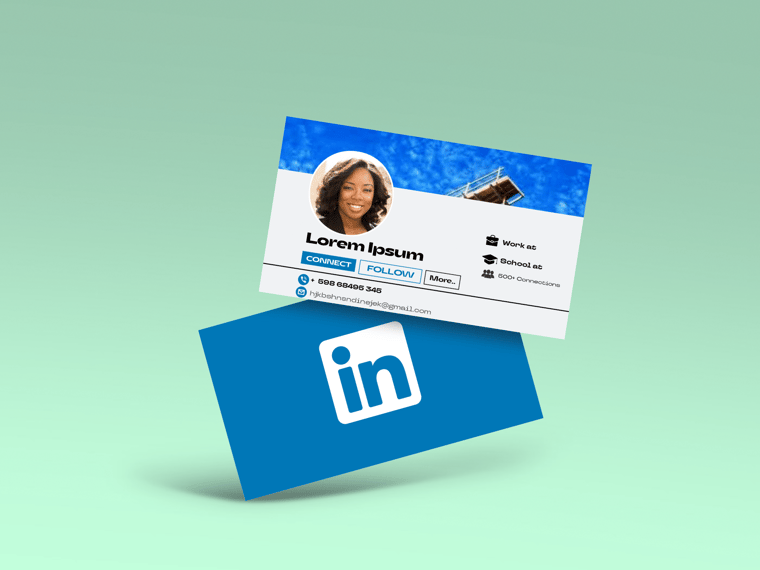
Quick tips for putting LinkedIn on your card
Customize your LinkedIn URL before you design anything so it reads clean on print. Show it as a shortened URL, a QR code, or both, and keep the QR code between 0.75 and 1 inch square with a white quiet zone. Choose a matte or uncoated stock so the code scans without glare, and test it on three phones before ordering. 4OVER4.COM customers who plan this out get cards that turn every handshake into a LinkedIn connection.
Watch it printed
See standard business cards on the press, in 167 seconds
How to write your LinkedIn address on a business card
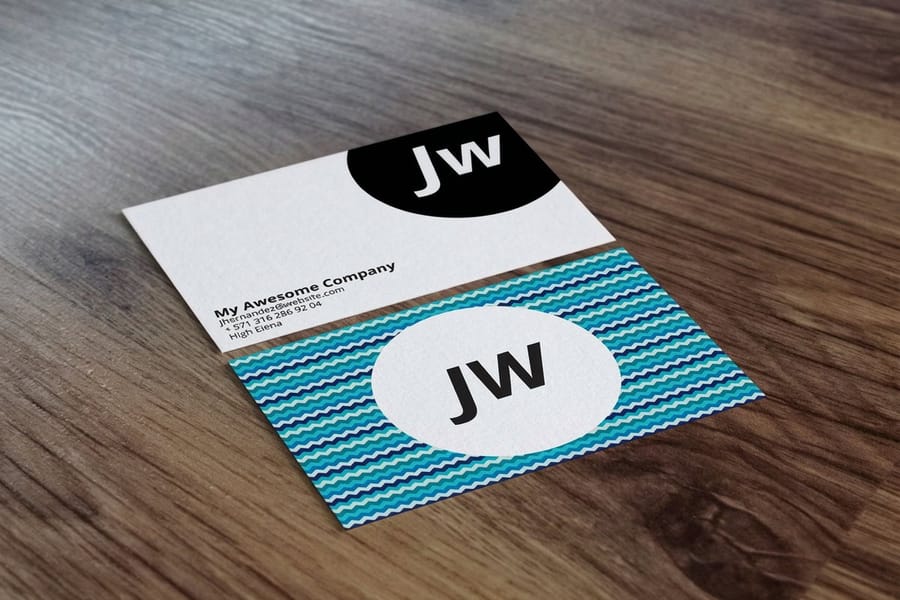
Write it as linkedin.com/in/yourname, with no https:// and no www. Claim that custom URL in your LinkedIn settings first so it reads as your name instead of a string of digits. Put it on one line with your other contact details, and add a QR code if the layout allows.
Four details keep it readable at card size. Set the address in the same point size as your phone number, never smaller, because anything that forces a squint gets skipped. Keep it lowercase, since capitals in a web address read as noise. Skip the words "LinkedIn profile" in front of it, the official "in" icon does that job in a fraction of the space. And print it exactly as you claimed it, because a card pointing at a handle you changed afterwards sends every reader to a dead page.
One line, one link. If you want the reader to reach you without typing anything, pair that line with a QR code in a lower corner of the card and let people choose. Both routes land on the same profile, so there is no reason to pick only one.
Why your business card needs a LinkedIn link
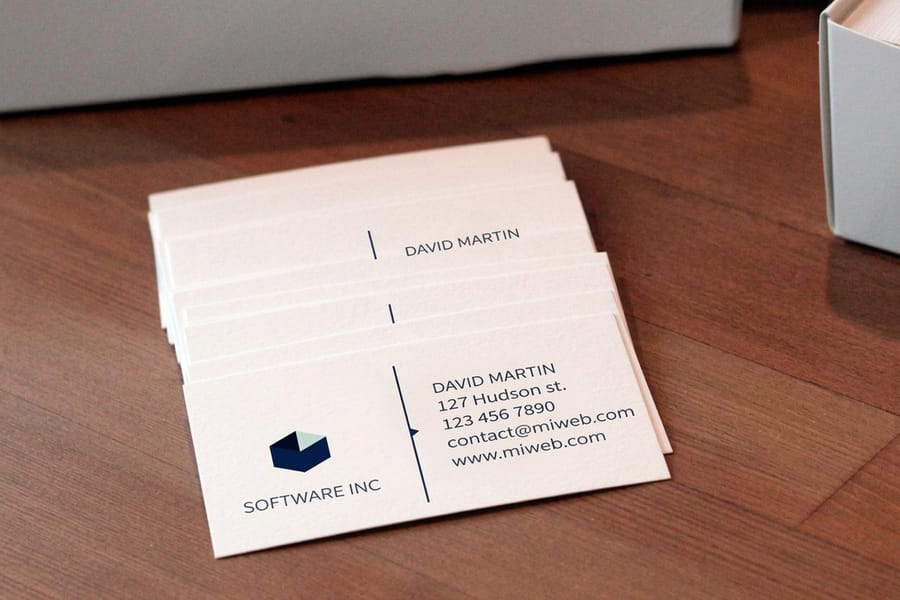
Your business card gets about 10 seconds of attention, and that is all. On a 3.5 by 2 inch card your LinkedIn line shares that space with your name, title, phone and email, so it has to be a short custom URL, a 0.75 to 1 inch QR code, or both. If someone cannot find your LinkedIn profile from that card, the connection quietly slips away. Adding LinkedIn is not complicated, but doing it well takes a little thought, and this guide walks through every step.
LinkedIn has over 1 billion members worldwide. It is where hiring managers, clients, and collaborators go to check who you are. A card without your LinkedIn profile is like a resume with no contact block. It reads as unfinished, no matter how sharp the design.
4OVER4.COM makes it easy to design cards that carry your LinkedIn details, whether that is a shortened URL, a QR code, or a small icon. A LinkedIn QR code business card prints on the standard business card stock list, from 14pt gloss cover up to 80pt UltraWhite, drawn from the 60+ paper stocks 4OVER4.COM runs across its range, so the code sits on a card thick enough to survive a week in a jacket pocket. You can pair the card with the rest of your printed brand too. Our guide on how to fold a brochure helps you match formats, and if stamps are part of your kit, how to clean rubber stamps keeps that impression crisp.
Step 1: Create your custom LinkedIn URL
Before you open any card tool, you need a clean LinkedIn URL. By default LinkedIn hands you a link full of random numbers. That is ugly on a printed card and nearly impossible to type. Fixing it takes under a minute.
- Log into LinkedIn and click your profile photo.
- Select View Profile.
- Click the pencil icon next to Public profile & URL on the right sidebar.
- Under Edit your custom URL, type your preferred handle, for example linkedin.com/in/janedoe.
- Click Save.
Keep it short. Use your full name or a close variation, and skip underscores and numbers when you can. If your name is taken, add a professional identifier such as your city, like linkedin.com/in/janedoe-nyc. This link is going on print, so it has to be easy to read and easy to type.
Step 2: Choose how to display LinkedIn on your card
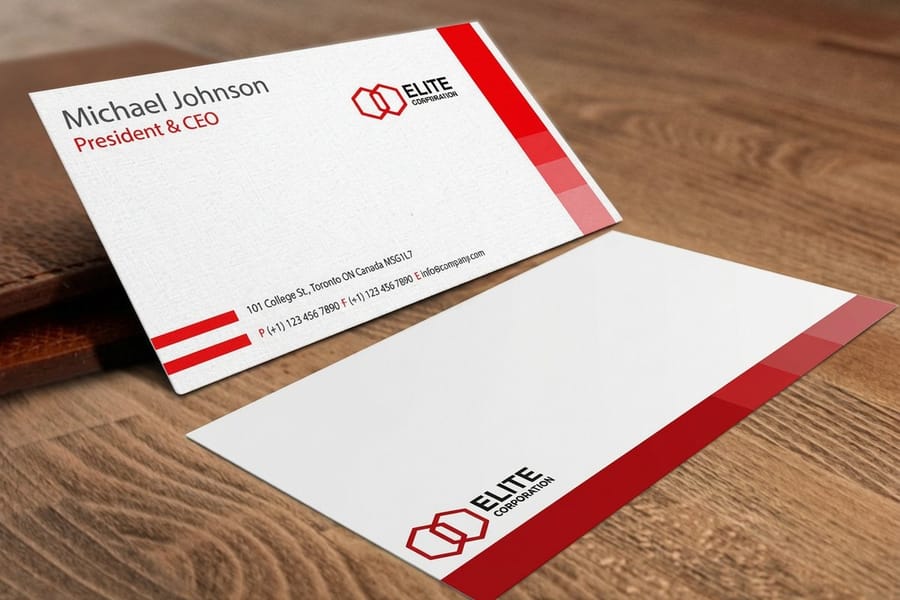
You have three solid ways to put LinkedIn on a business card. Each works differently depending on your design and your audience.
Option A, printed URL. The simplest approach. Print your custom URL, linkedin.com/in/yourname, near your other contact details. It needs no scan, so it works on any card shape and on every stock the standard business card offers, from 14pt uncoated to 80pt UltraWhite.
Option B, QR code. A QR code takes someone straight to your profile with one phone scan, no typing required. It is the fastest way to connect, and it reads best when it is at least 0.75 inches square on the card.
Option C, LinkedIn icon and URL. The LinkedIn logo is instantly recognizable. Pair the official "in" icon with your shortened URL for maximum clarity, and pull the icon from LinkedIn's brand resources rather than a blurry screenshot.
For more design inspiration across print formats, browse our guide hub for dozens of practical how-to guides.
Step 3: Design placement and layout
Where you put your LinkedIn info matters as much as what you include. Poor placement means people miss it entirely, so give it a deliberate home.
Back of the card. If the front is already packed with your name, title, phone, email, and logo, move LinkedIn to the back. A QR code with "Connect on LinkedIn" underneath is clean, roomy, and effective.
Front contact block. If you have space, add your LinkedIn URL right below your email, with the small LinkedIn icon as a visual cue. Keep the type at least 7pt so it stays readable.
Dedicated social section. Some professionals group all their handles together. If you are on LinkedIn, X, and Instagram for business, line them up with icons, but do not clutter. When LinkedIn is your primary platform, give it more prominence than the rest.
For QR codes, plan the contrast. A code on dark stock needs a white bounding box to scan cleanly. If you want a truly distinctive material that still handles a QR code, take a look at 30mil clear plastic cards.
Step 4: Generate and test your QR code
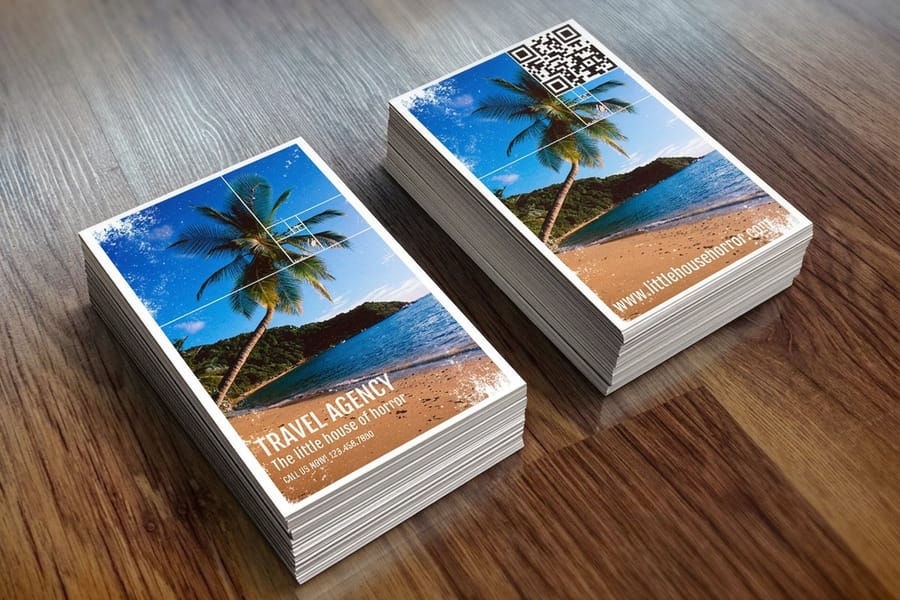
Your code already exists inside LinkedIn, so start there rather than on a random generator site. Open the app, tap the search bar at the top, tap the QR icon at the right end of that bar, open My Code, then choose Share or Save to Photos to keep a copy. That saved file is a screen-resolution image, perfect for a phone and too soft for print, so treat it as the reference and rebuild the same profile address at print resolution before it goes near a card.
If you are going the QR route, a few details separate a code that always scans from one that fails at the worst moment.
- Generate at high resolution. Export the code as SVG or PNG at 300 DPI minimum so it stays crisp at a small size.
- Test before printing. Scan it from your screen with at least three different phones. If it fails on screen, it will fail on paper.
- Add a quiet zone. Leave white space around the code, at least 0.1 inches on every side, so text and graphics do not crowd it.
- Keep it simple. Heavy color customization and embedded logos can break scannability, so go easy on the styling.
The ideal size on a standard 3.5 by 2 inch card is between 0.75 and 1 inch square. Any smaller and older phone cameras start to struggle. Need a code fast? Our free QR code generator builds a print-ready LinkedIn QR code you can export at 300 DPI.
Step 5: Pick the right card stock for your LinkedIn card
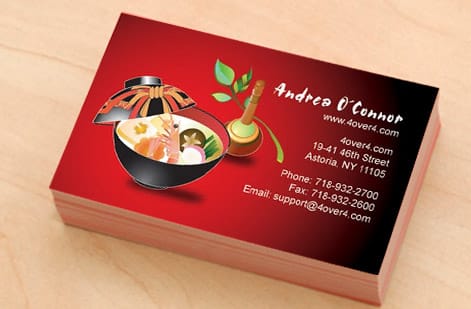
Your paper stock shapes how professional the whole LinkedIn integration feels. A thick, textured card with a clean QR code says you take your career seriously. A flimsy card with a pixelated code says the opposite.
For cards that feature a QR code, matte and uncoated finishes scan more reliably than high-gloss. Gloss can throw glare under certain lighting and make the code harder for a camera to read. If you want a premium hand-feel without the scanning risk, soft-touch matte gives you that velvety texture and still reads clean.
If you are building a full branded set to go with your cards, our guides on how to make flyers and how to make envelopes round out a complete mailing package.
Step 6: Optimize your LinkedIn profile before printing
Here is the step most guides skip. Before you print 500 cards pointing at your LinkedIn URL, make sure the profile is actually worth visiting. Your profile is the landing page for the card, and a scan that lands on an empty page wastes the connection.
Run through this quick checklist first:
- A professional headshot, not a cropped group photo.
- A headline that describes what you do, not just your job title.
- A summary section with your value proposition.
- At least 3 recent experience entries.
- 5 or more skill endorsements.
- A custom background banner.
Think of it this way: your business card is the handshake and your LinkedIn profile is the conversation that follows. Both need to be strong. For another branded item to hand out at events, our guide on how to make custom magnets is a fun next project.
Digital business cards and LinkedIn integration
Physical cards are not the only option. Digital business cards, shared by NFC tap, text, or email, can carry a clickable LinkedIn link to the same linkedin.com/in/yourname address you print on paper, so keep the printed URL and the 0.75 to 1 inch QR code pointing at that one address. The upside is obvious: one tap and the recipient is on your profile with no typing and no scanning.
Here is the thing though. Physical cards still outperform digital in face-to-face settings. People remember a sturdy, well-made card they can hold, and that tactile moment creates a stronger memory anchor than a notification on a screen.
The best approach is to use both. Print physical cards with your LinkedIn QR code for in-person events, and set up a digital card for virtual meetings and email signatures. 4OVER4.COM prints the physical side, and your LinkedIn URL works exactly the same on both.
Getting your LinkedIn QR code from the app
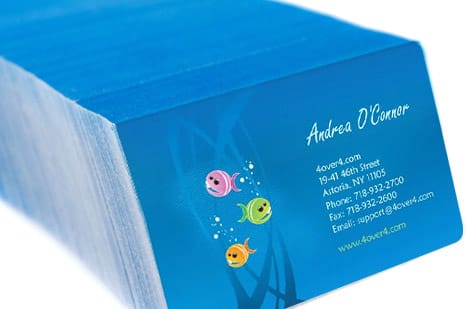
Three routes to the same code, ordered by how well each one prints.
- Straight from the app. Open LinkedIn, tap the search bar, tap the QR icon at the right end of the bar, open My Code, then Share or Save to Photos. The image lands in your camera roll at screen resolution.
- Rebuilt from your custom URL. Feed linkedin.com/in/yourname into our free QR code generator and export SVG or a 300 DPI PNG. The code encodes nothing but that public address, so this version scans exactly like the app one and holds a crisp edge at 0.75 inches on paper.
- When the QR icon is missing. Some app versions move it. Tap the search bar first, since the icon only appears once the search screen opens, or go to your profile, open the three-dot menu and look for the code there. If neither shows it, update the app, or skip the hunt entirely and rebuild the code from your custom URL, which gives you the better print file anyway.
Whichever route you take, the destination is your public profile, so claim the custom URL before you generate anything. Change the handle after the cards are printed and every code in circulation points at a page that no longer exists.
Mistakes that ruin your LinkedIn business card
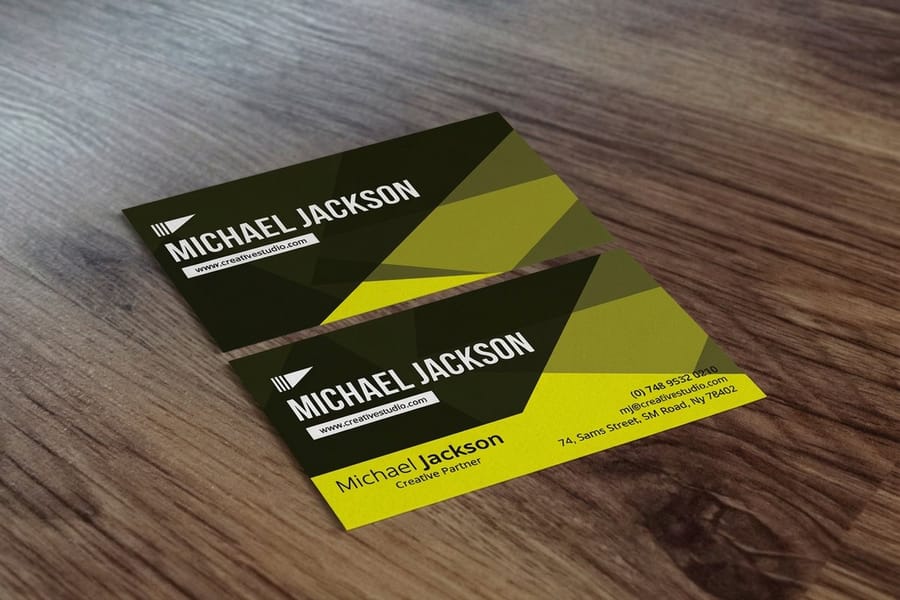
Even sharp professionals slip up when adding LinkedIn to a card. Avoid these and yours does its job every time.
Using the default URL. A link like linkedin.com/in/john-smith-a8b92c3d looks unprofessional and is almost impossible to type correctly. Customize it first.
Printing the QR code too small. Anything under 0.6 inches will not scan reliably. Give the code room to breathe.
Skipping the QR test. Print a proof and scan it under fluorescent light, in dim light, and at arm's length. If it fails any of those, resize or reposition it.
Linking to a dead profile. If you changed your custom URL after printing, every card in circulation points nowhere. Confirm the URL before you reorder.
Overcrowding the card. Listing LinkedIn, Facebook, Instagram, X, TikTok, YouTube, and a personal blog turns the card into a cluttered mess. Pick the two or three platforms that matter, and for most professionals LinkedIn is the one that counts. 4OVER4.COM prints clean, balanced layouts that give every element space.
Wally explains LinkedIn on a card
One scan turns a paper card into a live connection
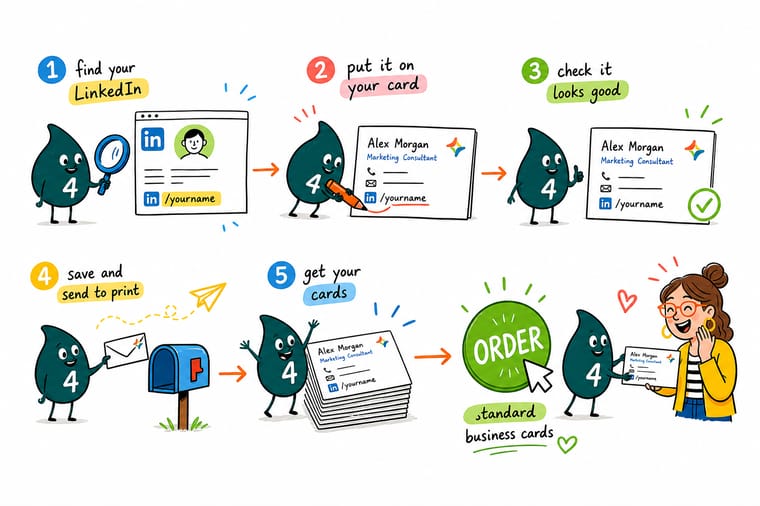
Wally treats your business card like a doorway: the QR code or clean URL is the handle, and your LinkedIn profile is the room behind it. Customize the URL so it reads sharp, size the code so any phone opens it, and make sure the profile it lands on is actually worth the visit. Then print it on a stock that feels as professional as the profile looks, and 4OVER4 handles the rest.
Design your business cards →
URL or QR code
LinkedIn URL vs LinkedIn QR code
Both get people to your profile. Here is how a printed URL and a scannable QR code compare so you can pick the right mix for your card.
| Feature | LinkedIn URL | LinkedIn QR Code |
|---|---|---|
| Ease of use | Recipient types the link by hand | Scannable with any smartphone camera |
| Professional look | Customizable to match your branding | Customizable with colors and a logo |
| Networking speed | Moderate, depends on typing | Immediate, one tap to your profile |
| Where it works | Physical and digital cards alike | Best suited to printed cards |
Specs and pricing
Standard business card specs and pricing
When you are ready to print your LinkedIn card, here is what a standard business card gives you at 4OVER4.COM, with live specs and price-per-unit straight from the configurator.
| Quantity | Price Per Unit | Total |
|---|---|---|
| 100 | 17.6¢ | $17.57 |
| 200 | 11.5¢ | $23.07 |
| 300 | 9.15¢ | $27.46 |
| 400 | 7.96¢ | $31.86 |
| 500 | 7.25¢ | $36.26 |
| 600 | 6.77¢ | $40.64 |
| 700 | 6.43¢ | $45.04 |
| 800 | 6.18¢ | $49.43 |
Start from a template
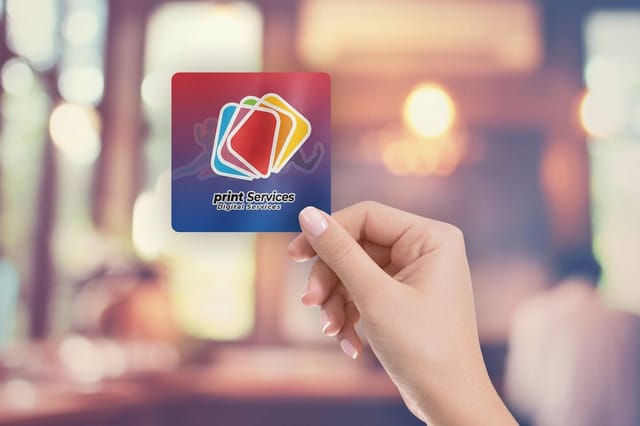
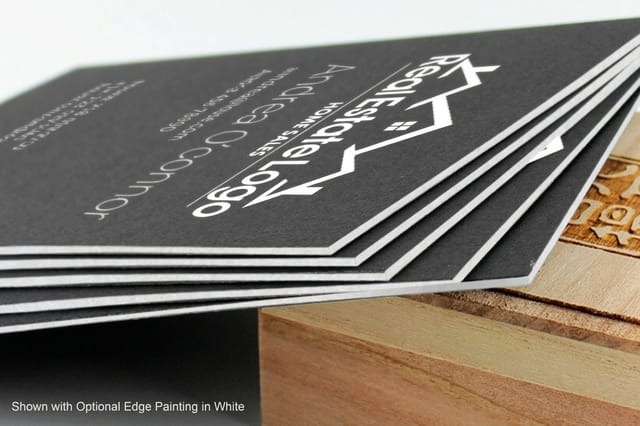
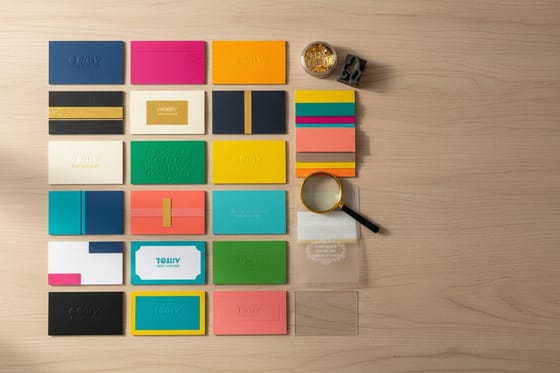
Blank business card templates
Prefer to build from a print-ready layout? Start with a blank template sized correctly for bleed and quiet zones, then drop in your LinkedIn details.
Print it
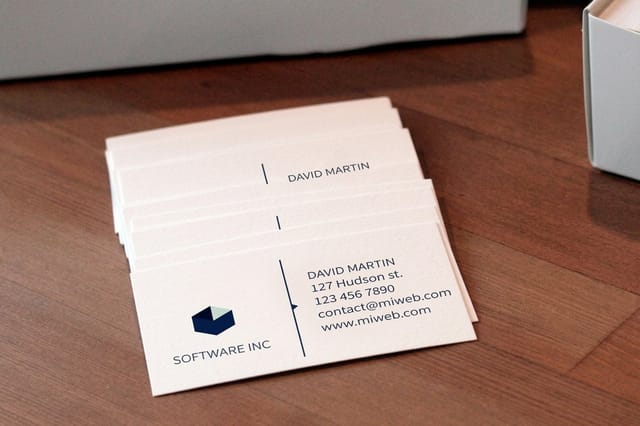
Best business cards for your LinkedIn profile
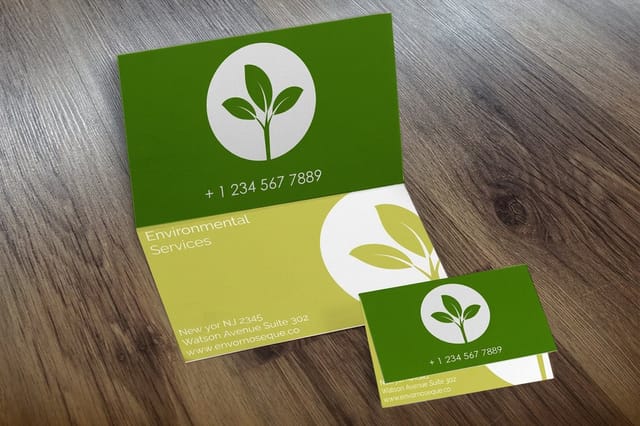
Free design templates
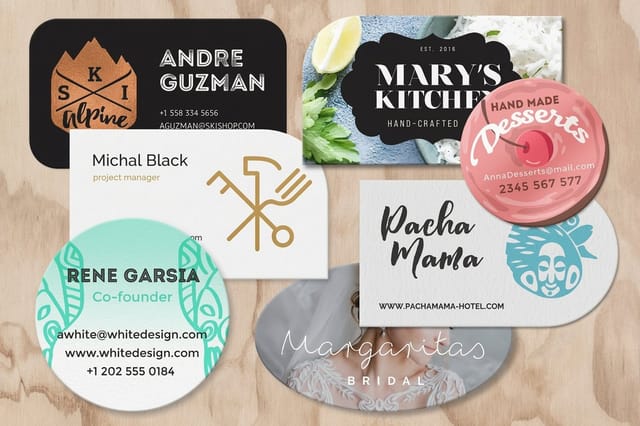
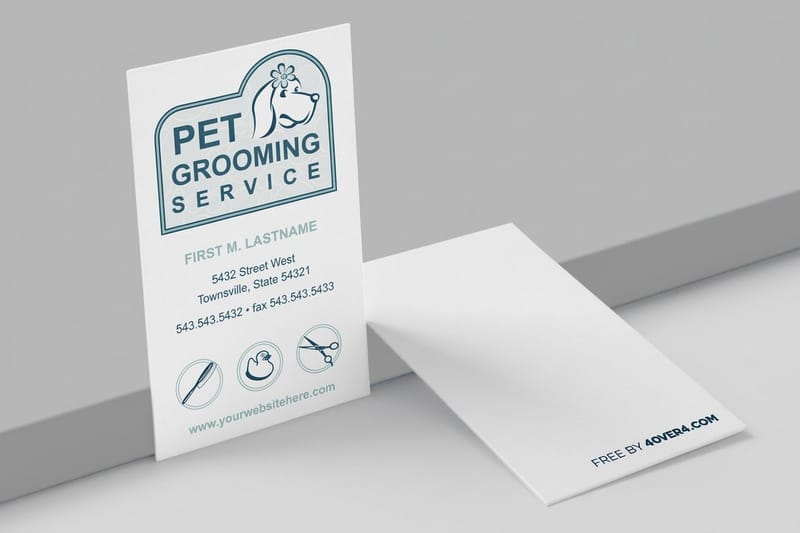
Free business card designs to customize
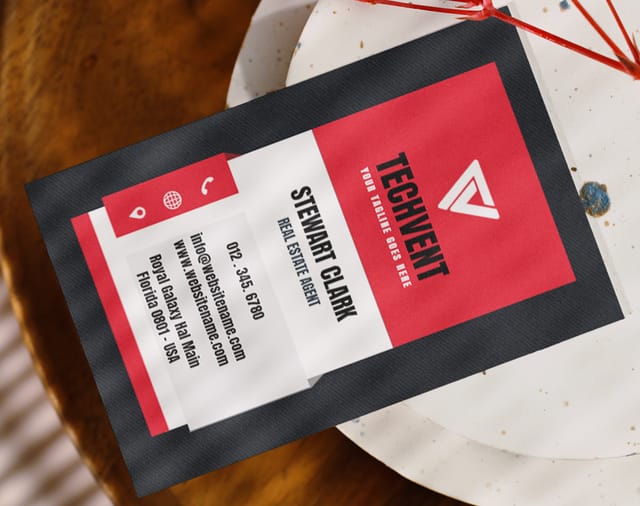
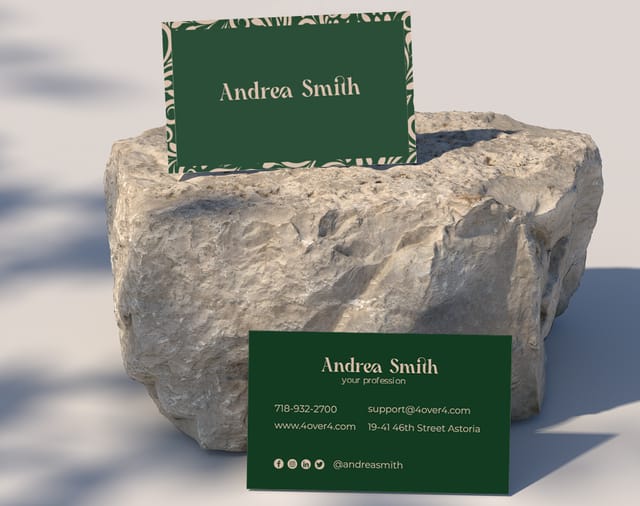
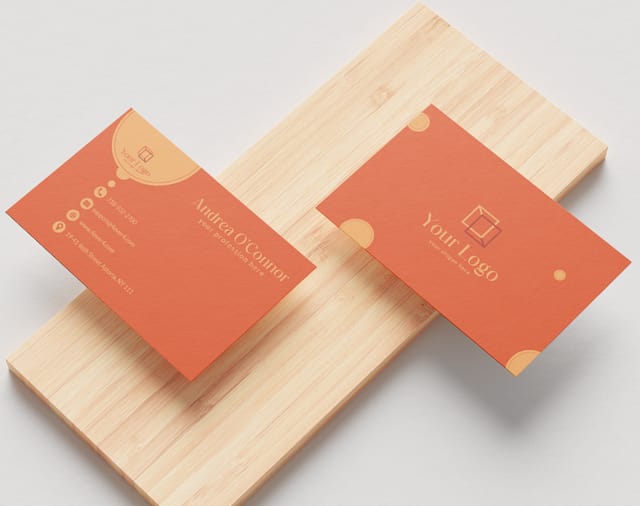
Open any of these in the online designer, add your LinkedIn URL or QR code, and send it to print. If your cards need to move quickly, 4OVER4.COM offers same day printing on select products, and you can order invitation cards as a promotional sample to check our print quality firsthand.
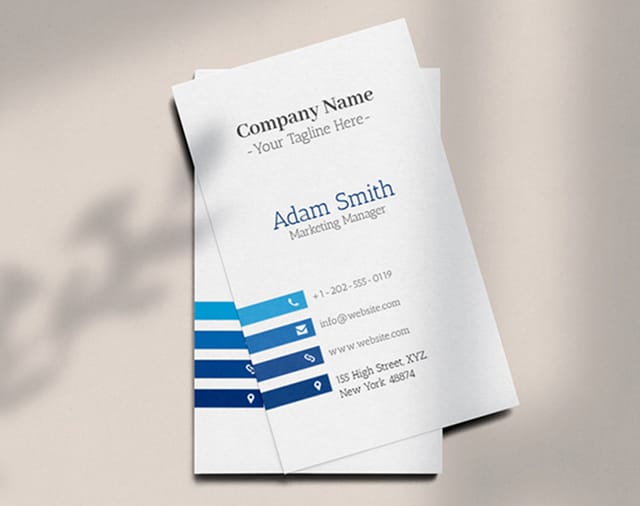
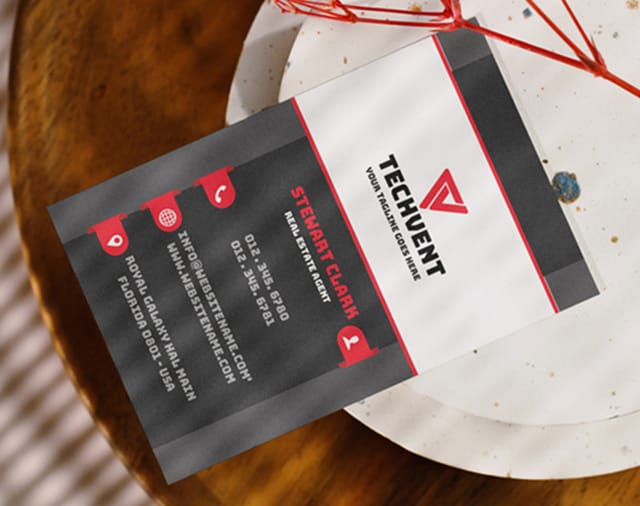
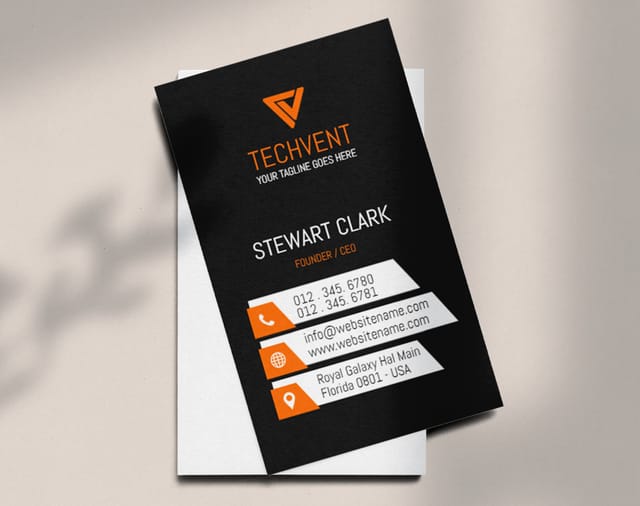
See it in use
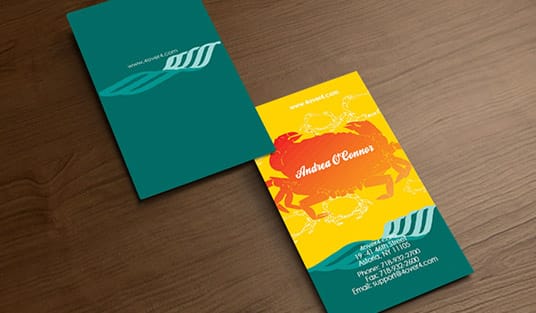
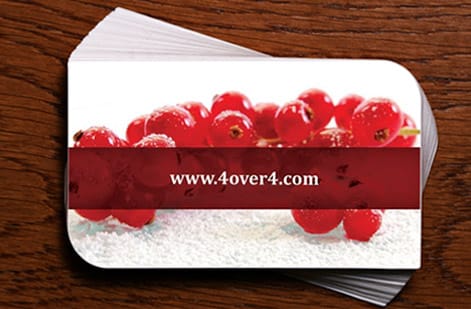
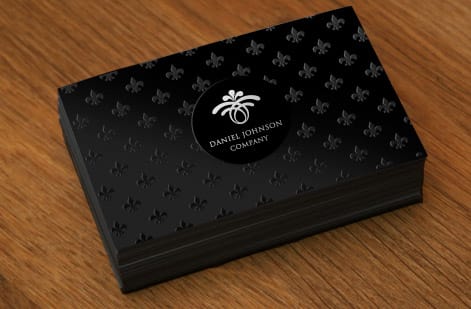
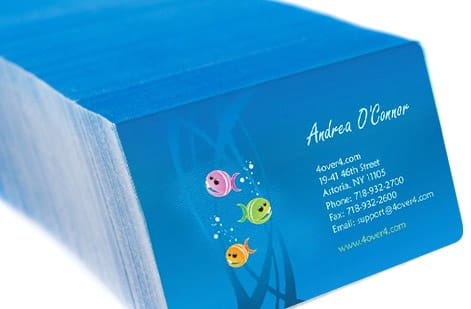
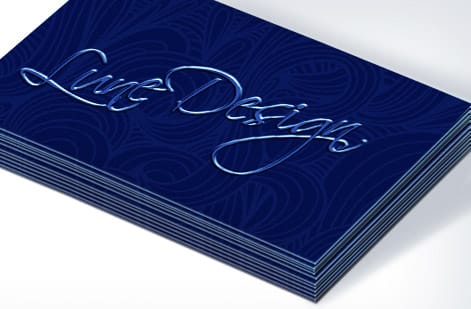
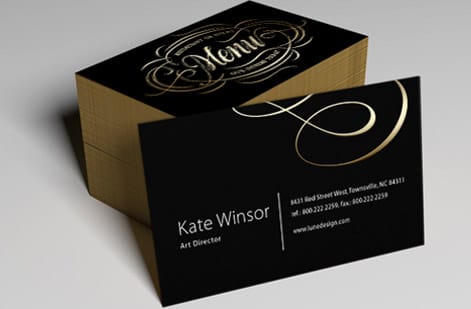
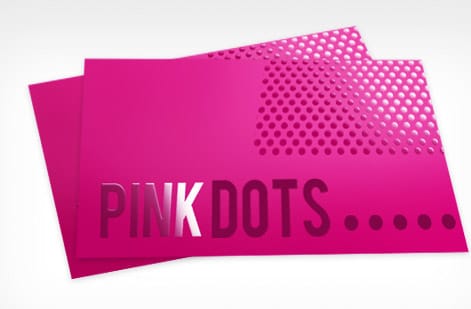
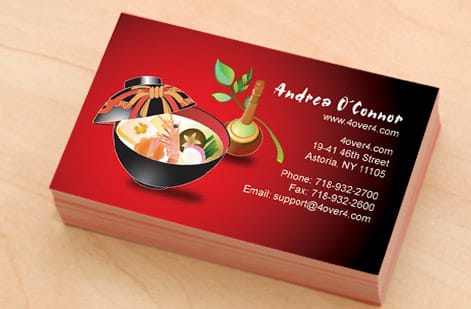
Cards customers printed with their profiles

Explore more
Where to go next

By the numbers
Ten billion cards against a billion LinkedIn profiles
Common Questions
Your LinkedIn business card questions, answered
How do I insert a LinkedIn symbol in Word?
In Word for Microsoft 365, go to Insert, then Icons, search for LinkedIn, and insert the icon, then resize it beside your URL. If your version has no icon library, download the official in logo from the LinkedIn brand resources page and place it with Insert, then Pictures. For a printed card the Word file is only a mockup, so rebuild the icon as a vector or a 300 DPI PNG in the online designer before it goes to press.
What does a LinkedIn address look like?
A personal LinkedIn address is linkedin.com/in/ followed by your handle, for example linkedin.com/in/janedoe. Until you customize it, the handle is your name plus a string of letters and numbers, which is why the first step is to claim a clean one in your settings. Company pages use linkedin.com/company/ and the company name. On a card, print it lowercase with no https:// and no www.
What's the best way to add LinkedIn to a business card?
The most effective method combines a custom LinkedIn URL with a QR code. Print your shortened URL, linkedin.com/in/yourname, for people who prefer typing, and add a QR code for instant scanning. Place them together on the back of your card for a clean layout.
How do you write a LinkedIn address on a business card?
Write it as linkedin.com/in/yourname, with no https:// and no www. Claim that custom URL in your LinkedIn settings first so it reads as your name instead of a string of digits. Put it on one line with your other contact details, and add a QR code if the layout allows.
Can I put a LinkedIn QR code on my business card?
Yes, and it is the quickest way to get someone onto your profile. Keep the code 0.75 to 1 inch square on a standard 3.5 by 2 inch card, leave a white quiet zone of at least 0.1 inches around it, print on matte, soft-touch or uncoated stock so glare does not beat the camera, and set your custom URL beside it for anyone who would rather type.
How do I get my LinkedIn QR code?
Open the LinkedIn app, tap the search bar, tap the QR icon at the right end of the bar, open My Code, then Share or Save to Photos. That file is screen resolution, so for print rebuild the same linkedin.com/in/yourname address as an SVG or a 300 DPI PNG before it goes on a card.
How big should a LinkedIn QR code be on a business card?
Aim for at least 0.75 inches square on a standard 3.5 by 2 inch card. Smaller codes can fail to scan, especially on phones with older cameras. Leave a white quiet zone of at least 0.1 inches around the code on all sides.
Can I use the LinkedIn logo on my business card?
Yes, but use the official LinkedIn icon from their brand resource page. LinkedIn allows use of their "in" logo bug for linking purposes. Do not modify the colors or proportions, and pair it with your URL for instant recognition.
Does the card finish affect QR code scanning?
It can. High-gloss finishes sometimes cause glare that interferes with phone cameras. Matte, soft-touch, and uncoated finishes scan most reliably. If you want gloss on the front, consider putting your QR code on an uncoated back side.
How do I create a free QR code for my LinkedIn profile?
Use 4OVER4.COM's free QR code generator to create a high-resolution code linked to your LinkedIn profile URL. Export it as a PNG or SVG at 300 DPI for print-quality results, and always test the code before sending your card design to print.
Should I put LinkedIn on the front or back of my card?
If the front has room in the contact block, add it there with a small LinkedIn icon. If the front is already full with name, title, phone, email, and logo, move LinkedIn to the back. A QR code on the back with "Connect on LinkedIn" text works great and keeps the front uncluttered.
Get Started
Ready to print your LinkedIn business card?
Pick your stock, add your custom URL or QR code, and we print a crisp, scannable card that turns every introduction into a connection.
Legal Disclaimer
Gold Standard guarantees apply to all standard orders placed through 4over4.com. Price match requires verifiable proof of a competitor's published price for an equivalent product with matching specifications and turnaround time. Satisfaction guarantee covers manufacturing defects and print quality issues. Contact support with order number and documentation.
