
How to Make an Image Less Pixelated Before You Print


Emma is our prepress and print production voice, built from the knowledge of our production team, with over 20 years in printing.
Blurry, blocky images are a resolution problem, not a filter. Resampling up invents pixels, and no amount of sharpening puts back detail that was never captured.
An image looks pixelated when it is printed larger than the real detail it holds. Fix it by checking each image at 100 percent zoom, using art that is about 300 DPI at final size, replacing low-resolution photos instead of enlarging them, keeping logos and text as vectors, and saving in TIFF, PNG, or a vector PDF. Our free file check flags anything too soft before it prints.
Start here
Pixels per inch at final size
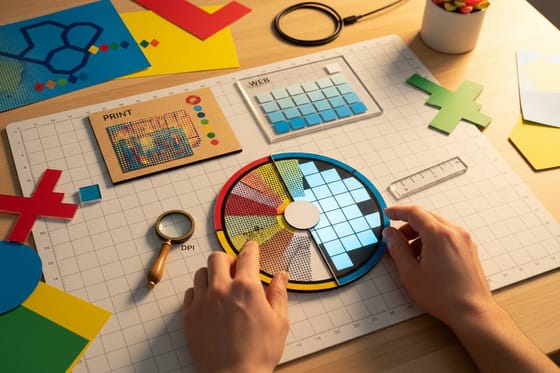
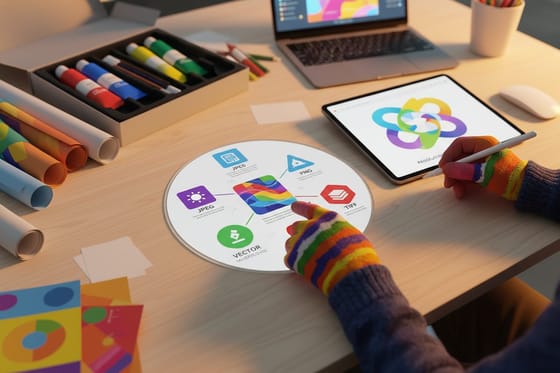
Pixelation is missing detail, so the cure is more real resolution, not a filter. The diagram below shows why the same photo prints sharp at 300 DPI and blocky at 72.
What pixelation actually is

Every photo on your screen is a grid of tiny colored squares called pixels. Pixelation happens when that grid gets stretched larger than the number of pixels it actually contains. To fill the extra space, the software has to invent pixels, and the result is the blocky squares and jagged edges you recognize as a pixelated image. A 1200 by 1800 pixel photo holds 300 DPI at 4 by 6 inches, but stretched across an 18 by 24 inch poster it falls to about 70 DPI, a quarter or less of what the press wants.
The important thing to understand is that pixelation is missing information, not a filter you can toggle off. Once an image is captured at a certain size, that is all the real detail it has. Enlarging it does not create more detail, it just spreads the existing detail thinner. That is why no print setting can rescue a truly low-resolution photo.
Print is less forgiving than a screen here. A monitor packs pixels densely and can hide softness, but a press reproduces fine detail at high resolution, so flaws that were invisible on screen show up on a poster or canvas. The fix is always about having enough real pixels before you print.
Does pixelation happen in vector images?
No, and this is the most useful exception to know. Vector images are not made of pixels at all. They are built from mathematical paths, so the software redraws them perfectly at any size. Blow a vector logo up to billboard scale and every edge stays razor sharp, because there is no fixed grid to stretch.
That is exactly why logos, icons, and text should live as vectors whenever possible. A vector mark scales from a sticker to a wall poster without losing a hair of crispness, while a low-resolution screenshot of that same logo would fall apart. If you have your logo only as a small raster file, ask for the vector version before you build a large piece.
The catch is that a photograph cannot be a true vector, because it is captured as pixels. So a strong print file usually mixes the two: vector for type and marks, high-resolution raster for photos. Our guide on logo design best practices covers building marks in vector from the start.
What to look out for: resolution, color, image type, file type
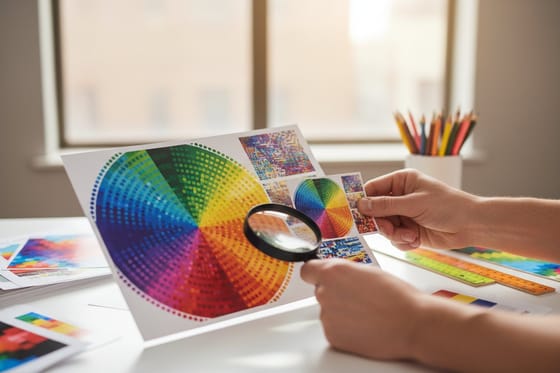
Resolution is the big one. Presses reproduce detail at about 300 DPI, and they need that resolution at the size the image actually prints, not the size it was saved at. A photo that looks fine small can be far too low-resolution once it fills a panel.
Color mode will not sharpen an image, but converting to CMYK before you export keeps color from becoming a second surprise on press. Image type matters too: keep logos and text as vectors, and reserve raster for photos where you have the resolution to back it up.
File type is the quiet culprit. A heavily compressed JPG bakes in blocky artifacts around edges and in flat areas, and those print just as ugly as true pixelation. Save from a lossless format like TIFF or PNG, or a vector PDF, so you are not printing compression damage. Our guide on image resolution for printing goes deeper on the first.
Interpolation: a rescue, not a fix
Interpolation is the smart upscaling built into image editors and a growing set of standalone tools. When you enlarge an image, interpolation decides what color the invented pixels should be by looking at their neighbors, which can soften jagged edges and make a slightly low-resolution image acceptable for print.
But be clear about what it does and does not do. Interpolation guesses the detail that was never captured. It can smooth an image, and modern upscalers do this well, yet pushed too far it produces a soft, plasticky look with invented texture. It is a rescue for an image you genuinely cannot re-source, not a substitute for enough real resolution.
So treat it as a last resort. Try to replace the image with a higher-resolution original first. If you must upscale, do it in modest steps, judge the result at 100 percent zoom, and remember that our online design tool and free file check will still flag an image that is too soft to print well. When no better original exists, our steps to upscale an image for printing with free tools show how far you can push it.
Order crisp prints with confidence
A file that passes the zoom test prints the way it looks: a poster, canvas print, or sheet of stickers comes back as sharp as the source, and no sharper.
If you are not sure a photo will hold up, order anyway: every order runs through a free file check, and a soft image gets flagged before it prints.
From there it is size, stock, finish, and quantity, all set in the configurator with the price updating live. Explore the full lineup in posters and wall art, where image quality matters most, and let the specs below guide your choices.
Wally trades blocky for crisp
More real pixels beats any upscaling trick
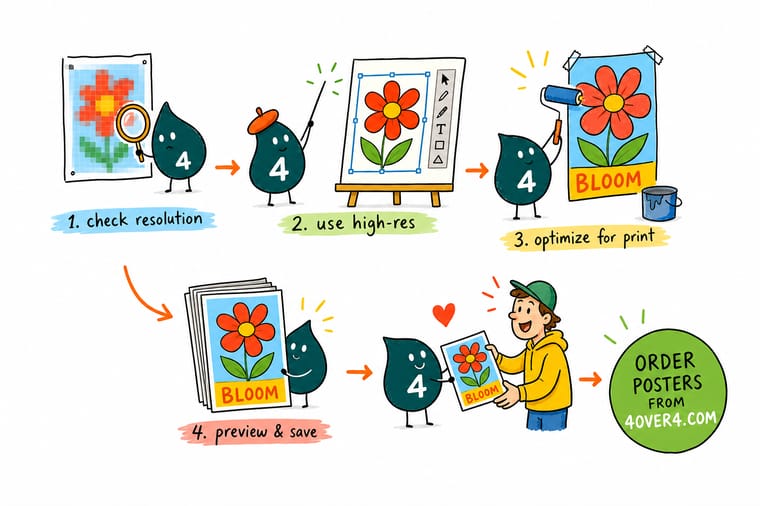
Wally checks every photo at full zoom and swaps a soft, blocky file for a sharp 300 DPI original before it ever hits the press. Keep logos as vectors, save in a clean file type, and let our free file check catch anything too soft. Then 4OVER4 prints your poster, canvas, or stickers exactly as crisp as your source.
Print crisp posters →Quick reference
Four checks that stop pixelation
Measure each row against the size you will print. For scale, an 18 by 24 inch poster at 300 DPI needs a 5400 by 7200 pixel image.
| Check | Get it to | Why it matters |
|---|---|---|
| Resolution | 300 DPI at final size | The single biggest cause of pixelation, and the one no other fix can make up for. |
| Color mode | CMYK | RGB art can shift on press. Converting to CMYK will not sharpen an image, but it keeps color from being a second surprise. |
| Image type | Vector for logos and text | Raster photos have fixed pixels and can pixelate. Vectors scale cleanly, so keep marks and type as vectors whenever you can. |
| File type | TIFF, PNG, or PDF | Heavy JPG compression adds blocky artifacts. Save from a lossless or vector format so you are not printing compression damage. |
Step by step
Fix a pixelated image in 6 steps
- View the image at 100 percent zoom Zoom to actual size in your layout. If it looks soft or blocky there, it will print that way, so this is your fastest test.
- Check the resolution at the print size Divide the pixel width by the printed width in inches. If the answer is well under 300, you need a larger source.
- Replace, do not enlarge Find a higher-resolution version of the same image rather than scaling the small one up. Original size at or above final size always wins.
- Rebuild logos and text as vectors Swap any low-resolution logo or screenshot for a vector version so those elements print crisp at any size.
- Save in a clean file type Export from TIFF, PNG, or a vector PDF instead of a heavily compressed JPG so you are not baking in compression artifacts.
- Let our free file check confirm it Upload your file and our free preflight flags low-resolution images before the press does, so nothing prints soft by surprise.
Specs and pricing
Poster specs and live pricing
Once your images are sharp, size, stock and finish set the price. Sizes go from 11 by 17 to 22 by 28 inches on 9 stocks, from 70# uncoated text to 15pt synthetic plastic, and the largest size needs a 6600 by 8400 pixel file.
| Quantity | Price Per Unit | Total |
|---|---|---|
| 50 | $2.18 | $108.75 |
| 100 | $1.64 | $163.67 |
| 200 | $1.01 | $202.11 |
| 300 | 80.2¢ | $240.55 |
| 400 | 69.7¢ | $278.99 |
| 500 | 63.5¢ | $317.44 |
| 600 | 55.8¢ | $335.02 |
| 700 | 50.4¢ | $352.59 |
Print it
Print sharp posters, canvas, and stickers
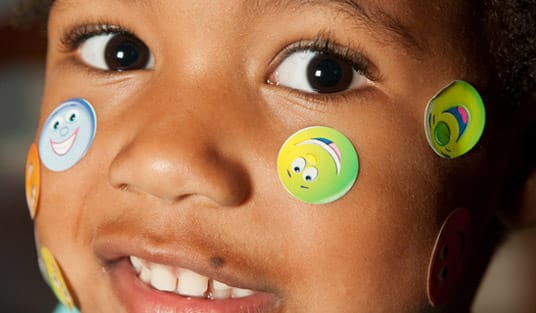
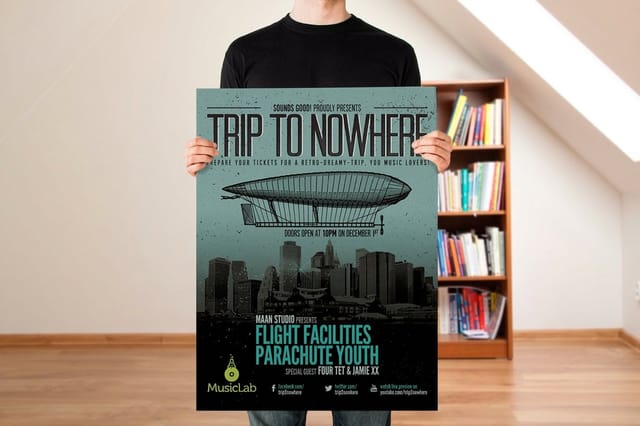
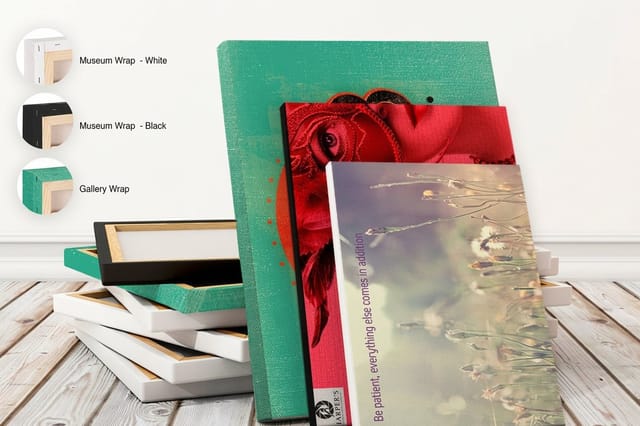
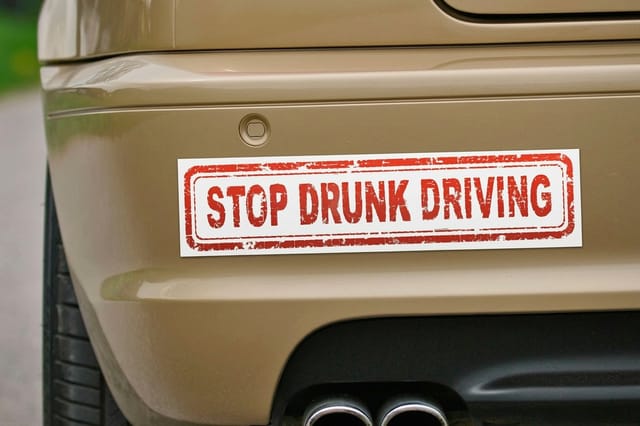
Stretched canvas runs 11 by 14 to 36 by 36 inches with a 1.5 inch gallery or museum wrap, so a gallery wrap needs picture beyond the face to fold around the edge. Bumper stickers run 2 by 5 to 2.75 by 15 inches on white permanent vinyl, and a 3 by 9 inch sticker needs only 900 by 2700 pixels.
See it in use
Real prints, produced in-house
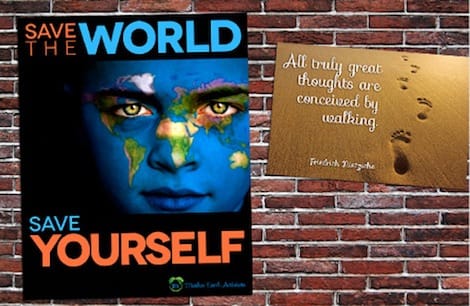
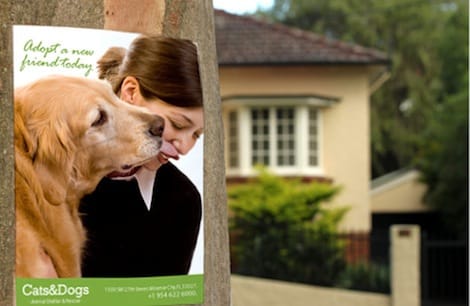
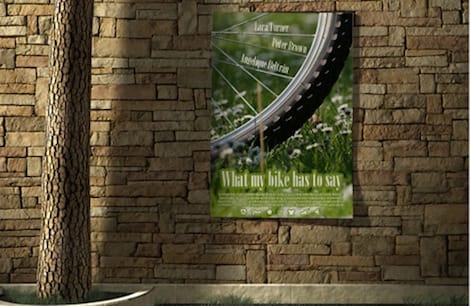
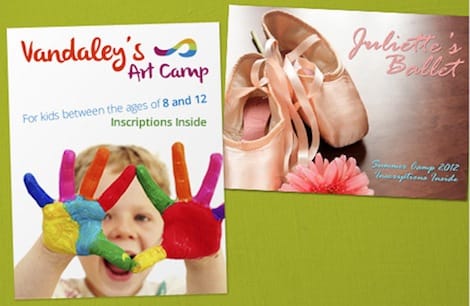
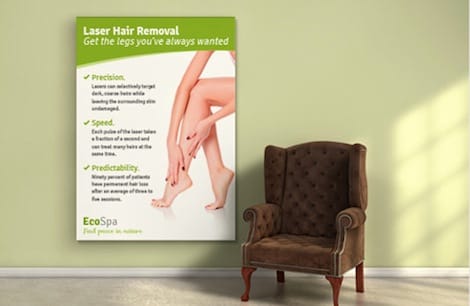
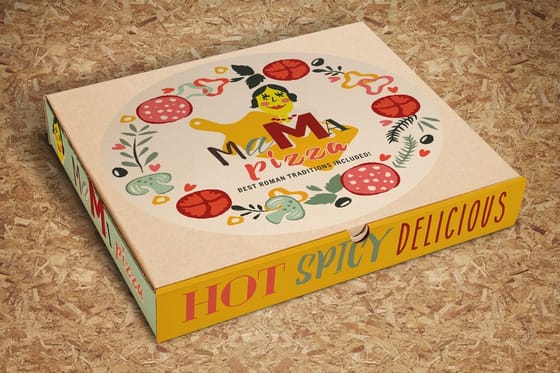
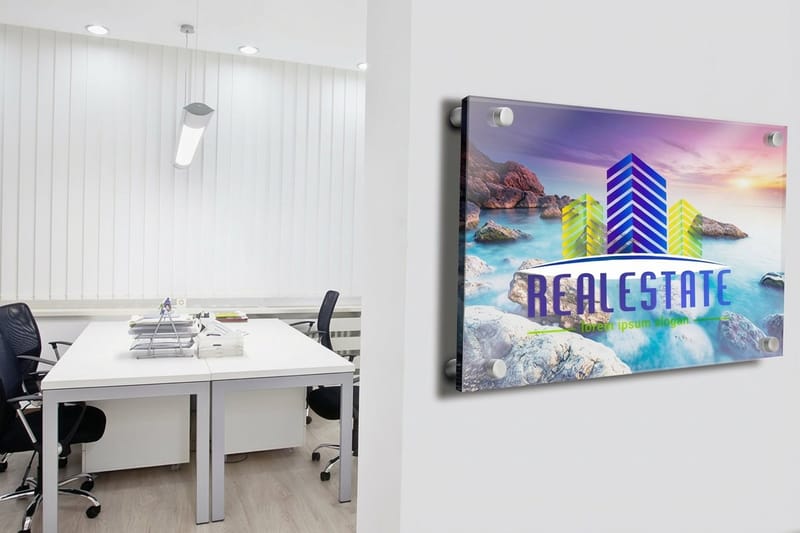
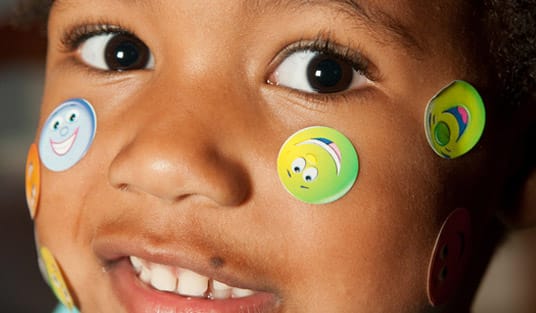
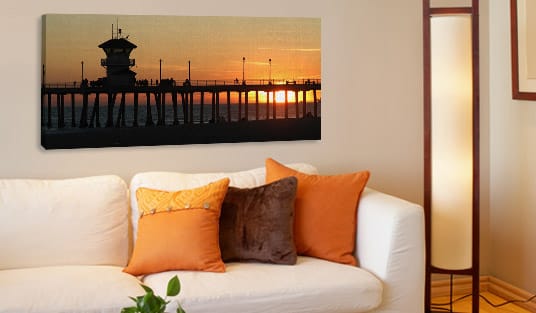
Look at the type edges and the fine texture in these customer posters, printed in our Queens plant: that is what a sharp source file looks like on paper.




Explore more
Where to go next
Open the resolution guide to work out pixel counts for your size, and the file type guide if you still export JPGs.
By the numbers
The resolution target and the check that catches it
Common Questions
Common questions about pixelated images and print
How do I make a picture less pixelated for print?
Replace it with a larger original of the same shot, such as the camera file in place of a copy saved from a website or a messaging app, which shrinks images to save data. If no larger file exists, the interpolation section above covers how far upscaling can take it.
What causes an image to look pixelated?
Two things: too few pixels for the print size, and heavy JPG compression. Compression damage shows as blocky halos around type and banding in skies and flat color, even on a file with enough pixels, so export again from the original rather than saving a JPG over itself.
Does pixelation happen in vector images?
No. A quick test tells you which kind you have: zoom to 800 percent in your editor, and a vector edge stays smooth while a raster edge turns to steps. A logo pasted into a PDF as a screenshot is still raster, even inside an otherwise vector file.
What should I look out for before printing an image?
Effective resolution, which catches images scaled up inside the layout: a 300 DPI photo placed at 200 percent prints at 150 DPI. InDesign shows it as Effective PPI in the Links and Info panels, so check it there rather than trusting the number the photo was saved at.
Can interpolation fix a pixelated image?
Only a little. A file slightly short of 300 DPI upscales with a clean result, while a 72 DPI file stays soft however far it is enlarged, because the software can only guess the detail between the pixels it has.
What does it cost to print crisp images, and how are prices set?
Fixing the file costs nothing, and resolution does not change the print price. Size, stock, finish and quantity do, and the configurator updates the total as you pick each one.
Get Started
Print posters from your sharp file
Upload the file, choose the size, stock and finish, and watch the price update as you go.
Legal Disclaimer
Gold Standard guarantees apply to all standard orders placed through 4over4.com. Price match requires verifiable proof of a competitor's published price for an equivalent product with matching specifications and turnaround time. Satisfaction guarantee covers manufacturing defects and print quality issues. Contact support with order number and documentation.
